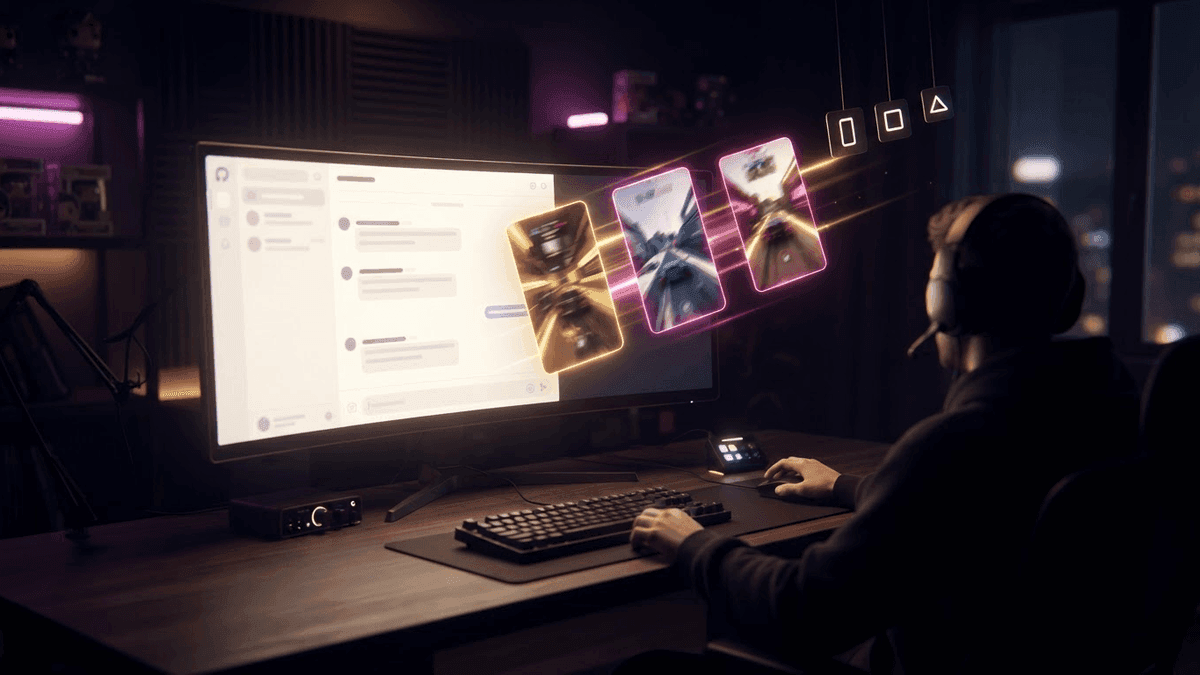
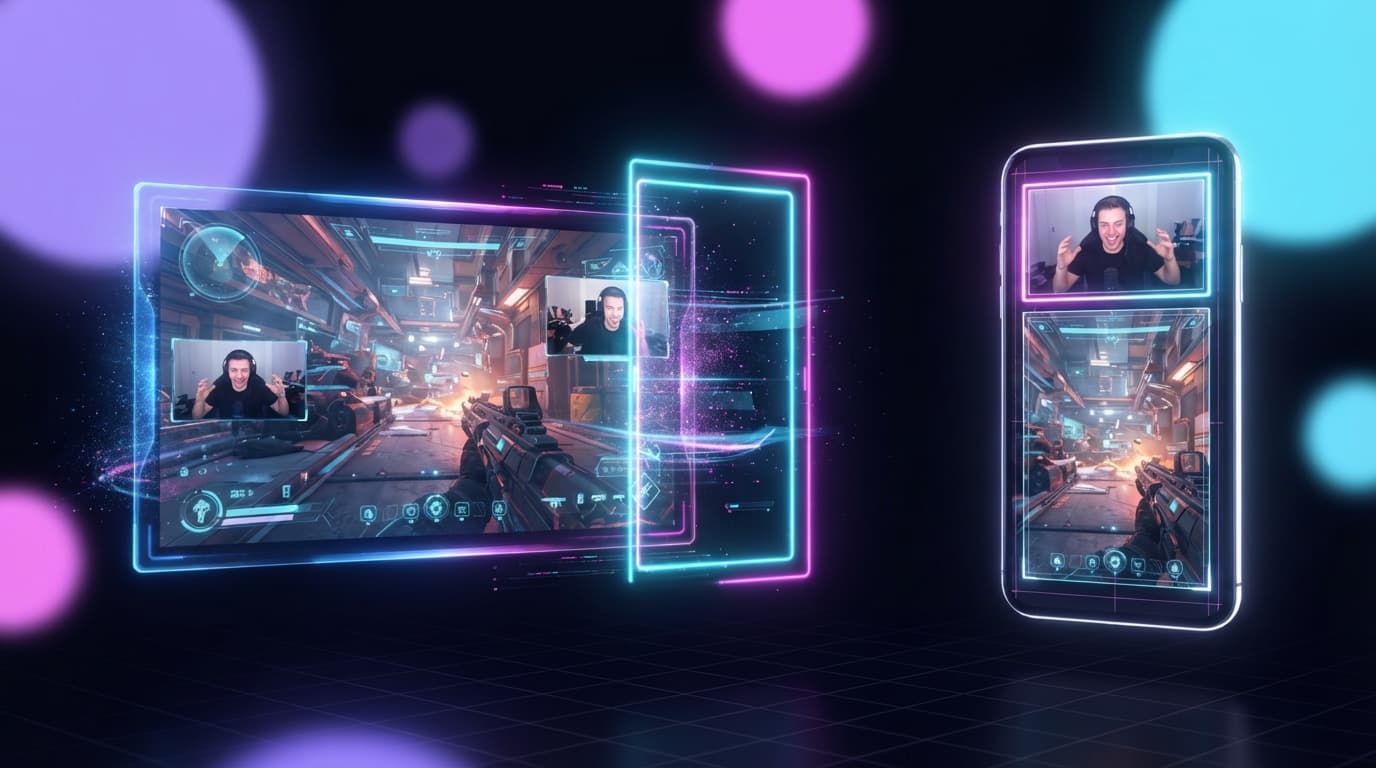
Tu stream es ancho, hecho para una pantalla de computadora. TikTok, Shorts y Reels son altos, hechos para un teléfono en vertical. Entre uno y otro, hay que recortar.
Ese formato alto se llama 9:16. Este artículo te da la guía completa para hacerlo bien, sin complicarte y sin programas difíciles.
Qué es exactamente el 9:16
No hace falta ahogarte en números. El 9:16 es simplemente una imagen más alta que ancha, la forma de una pantalla de teléfono en vertical.
Tu stream, en cambio, está en 16:9, más ancho que alto, la forma de una pantalla de tele. No puedes meter una imagen ancha en un marco alto sin hacer nada. Hay que recortar, o sea, elegir qué parte de la imagen te quedas.
Todo el reto del clip vertical está ahí: elegir bien qué te quedas.
El error básico: dejar el formato ancho
Lo peor que puedes hacer es publicar tu clip tal cual, ancho, en medio de una pantalla alta. Resultado: una franja pequeña de imagen en el centro y dos rectángulos negros enormes arriba y abajo.
Se ve amateur, desperdicia espacio y la imagen queda diminuta. Las plataformas y los viewers prefieren mil veces el cuadro completo. Si solo te quedas con una regla, que sea esta: siempre vertical completo, nunca barras negras.
Dónde poner tu facecam y el juego
Tienes altura que llenar. La pregunta es cómo.
La distribución más común en gaming: tu facecam arriba y la acción del juego abajo. Se ve tu cara y tu reacción, y luego lo que la provoca. Se entiende fácil y funciona casi siempre.
Otra opción: el juego a cuadro completo y tu facecam en una esquina pequeña. Va bien para juegos donde vale la pena ver la imagen en grande.
La regla que nunca cambia: se tiene que ver tu reacción y lo que la causa. Si se ve tu cara pero no lo que pasa, el clip no cuenta nada. Si se ve el juego pero no tu cara, se pierde la emoción.
Las zonas donde no debes poner nada importante
Aquí va algo que muchos no saben. En TikTok, la imagen no se ve completa. La interfaz de la app tapa los bordes.
Abajo está tu descripción, tu nombre de usuario, la música. A la derecha, los botones de like, comentario y compartir. Arriba, a veces, pestañas.
Esas zonas ocultan parte de tu imagen. Así que todo lo importante (tu cara, la acción clave, tu hook) tiene que quedarse hacia el centro. Si pegas tu texto hasta abajo, va a terminar medio escondido detrás de la descripción.
Deja un margen de seguridad en los bordes. El centro es tu zona segura.
¿Quieres estos clips en tu vida?
StreamClipping convierte tus directos en clips verticales listos para publicar, con subtítulos animados. Plan gratis de por vida, 15 minutos de vídeo al mes, sin tarjeta.
La duración correcta
El formato es el marco. La duración es el ritmo.
Para un clip de stream, apunta a 20 a 40 segundos. Suficiente para plantear el momento y hacerlo vivir, y lo bastante corto para que la gente lo vea hasta el final.
Mientras más largo, más oportunidades tiene la gente de irse antes del final, y un clip que la gente no termina, el algoritmo lo empuja menos. Corta todo lo que no sea el momento fuerte.
Un matiz sacado de nuestros propios datos: en el estudio de StreamClipping AI sobre 4 184 publicaciones de clips (datos al 1 de octubre de 2026), ninguna duración destaca claramente. En igualdad de condiciones, los clips de menos de 30 segundos y los de 60 segundos o más solo muestran una relación débil con las views, e inestable de una variante del cálculo a otra. El rango de 20 a 40 segundos sigue siendo una buena referencia de ritmo, no una regla demostrada por las views. El detalle está en el estudio completo.
Los errores de encuadre más comunes
La facecam diminuta
Si tu cara es del tamaño de una estampilla, nadie ve tu reacción. Tu cámara tiene que ser lo bastante grande para que se lean tus expresiones.
La acción cortada
De tanto encuadrar tu cámara, a veces olvidas dejar visible el momento del juego. Revisa siempre que la causa de tu reacción esté dentro del cuadro.
El texto en las zonas ocultas
Un hook puesto demasiado abajo o demasiado al costado termina detrás de los botones de la app. Mantén el texto al centro.
La cámara que se sale del cuadro
Si te mueves durante tu stream, tu facecam puede desplazarse. Un recorte fijo a veces la pierde. Necesitas un encuadre que la siga, o revisar clip por clip.
A mano o en automático
Recortar a mano se puede, pero toma tiempo, sobre todo si te mueves en el cuadro. Tienes que ajustar el recorte durante todo el clip para no perder nunca tu cámara ni la acción. En un clip con algo de movimiento, se lleva una eternidad.
En automático, una buena herramienta sigue tu facecam sola, mantiene la acción visible y te entrega un clip vertical ya bien encuadrado. Revisas, corriges si hace falta, y listo.
Eso es lo que hace StreamClipping AI: el recorte vertical, el seguimiento de la cámara y la distribución se hacen por ti en cada clip.
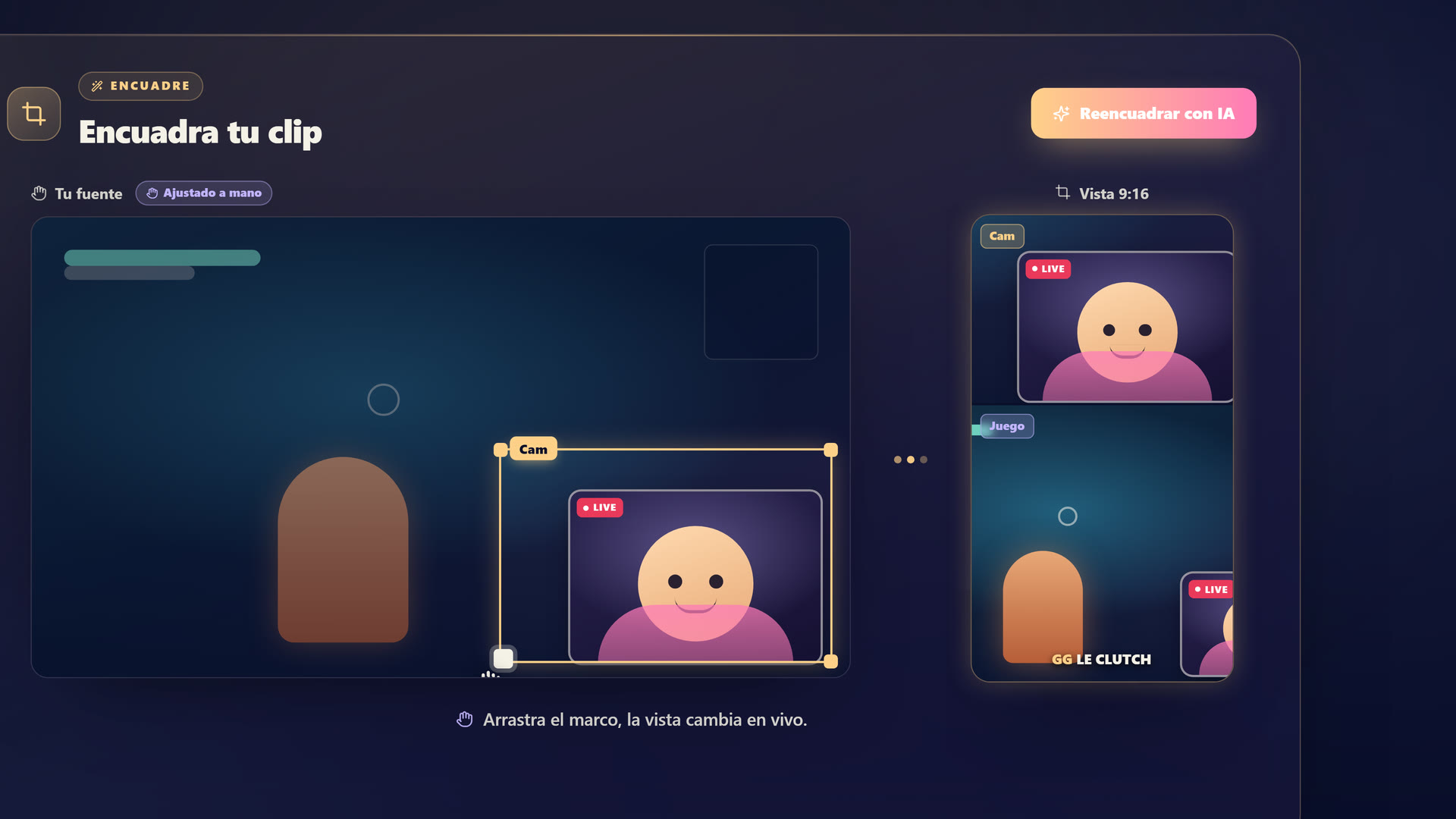 StreamClipping AI recorta tu stream 16:9 a vertical 9:16 y sigue tu facecam automáticamente para mantenerla centrada durante todo el clip.
En resumen
El clip vertical son tres cosas. El cuadro completo, nunca barras negras. El buen encuadre: tu reacción y su causa siempre visibles, y el texto al centro, lejos de las zonas ocultas. Y la duración correcta, de 20 a 40 segundos.
Hazlo a mano si te gusta, o deja que una herramienta lo haga y guarda tu tiempo para tus streams.
StreamClipping AI te deja probarlo gratis, 15 minutos de video al mes de por vida, sin tarjeta.
Para seguir aprendiendo:
- Cómo clipear un stream de Twitch: el método de la A a la Z
- Subtítulos animados en tus clips: por qué no son negociables
- Qué programa de clipping elegir en 2026
Hecho con amor, por un streamer para los amantes del stream. Ragnarlebroc.