Tu as installé OBS. Tu as cliqué "Stream" pour la première fois. Tes viewers se plaignent : "ça lag", "le son est bizarre", "ça pixellise". Tu cherches sur YouTube. Tu trouves 12 tutos qui se contredisent. Tu finis frustré avec une config qui marche à moitié.
Je règle ça. La config OBS optimale 2026, avec les vraies valeurs à coller, section par section. Pour Twitch, Kick, YouTube Live. PC moyen et grosse config. Et ce que personne te dit : les pièges d'optimisation qui te bouffent 50% de CPU pour rien.
À la fin, tu as une config qui tourne à 4-8% CPU stable, qui rend en 1080p60 propre, avec un son clean et zéro drop frame.
Les 3 erreurs qu'on voit dans 80% des configs OBS
Avant de détailler, voici ce que je vois en checkant les setups de mes potes streamers et de viewers Twitch qui partagent leur OBS pour debug.
1. Ils streament en 1080p60 sur connexion 8 Mbps upload. Math impossible : Twitch maxe à 6 Mbps de bitrate vidéo, et avec 8 Mbps total tu as 0 marge pour les pics. Résultat : drop frames quand tu rage.
2. Ils utilisent x264 software sur GPU NVIDIA récent. Aberration. Tu as un GPU avec encoder NVENC dédié (gratuit en CPU) et tu fais bouffer ton CPU pour rien. Tu joues moins fluide sans raison.
3. Ils ont 5 audio sources non-routées. Mic input + Discord + jeu + Spotify + alerts, tous mélangés sur une seule track. Donc impossible pour les viewers de baisser ta musique sans baisser ta voix. Et toi tu peux pas mute Discord pour un appel privé sans couper le stream.
Si t'as un de ces 3 problèmes, l'article suivant règle ça en 30 minutes.
Section 1 : Le bitrate et la résolution selon ta connexion
Test ta connexion d'abord. Va sur speedtest.net, regarde ton upload (pas download, peu importe). Note la valeur.
Si tu as 5 Mbps upload ou moins (ADSL FR de base)
- Résolution : 720p (1280x720)
- Framerate : 30 fps
- Bitrate vidéo : 3000-3500 Kbps
- Audio bitrate : 160 Kbps
Tu vas pas pouvoir faire 1080p60 sans drops. Accepte-le, fais du 720p30 propre. C'est mieux que du 1080p60 qui drop toutes les 30 secondes.
Si tu as 8-15 Mbps upload (fibre basique FR)
- Résolution : 1080p (1920x1080)
- Framerate : 60 fps
- Bitrate vidéo : 6000 Kbps (Twitch max)
- Audio bitrate : 256 Kbps
C'est le sweet spot pour 80% des streamers FR. Stream propre, marge confortable.
Si tu as 30+ Mbps upload (fibre ou pro)
- Résolution : 1080p ou 1440p si jeu compatible
- Framerate : 60 fps
- Bitrate vidéo : 8000 Kbps si Twitch Partner (au-dessus du 6000 default), sinon 6000 Kbps
- Audio bitrate : 320 Kbps
Twitch limite à 6000 Kbps en standard. Les Partners + Affiliates premium peuvent monter à 8000. YouTube Live et Kick acceptent jusqu'à 10000 Kbps.
La règle non-négociable
Ton bitrate vidéo ne dépasse jamais 75% de ton upload. Sinon tu drops sur les pics. Si t'as 8 Mbps upload, max 6000 Kbps. Si t'as 5 Mbps, max 3700 Kbps.
Tu veux ces clips dans ta vie ?
StreamClipping transforme tes lives en clips verticaux prêts à poster, sous-titres animés inclus. Plan gratuit à vie, 15 min de vidéo par mois, sans carte bancaire.
Section 2 : Le bon encoder selon ton matos
C'est là que la majorité des configs sont nazes. Choisis dans cet ordre de préférence.
Si tu as un GPU NVIDIA RTX 2000 ou plus récent (RTX 2060, 3060, 4060, etc.)
Encoder : NVENC HEVC (h265) ou NVENC H.264 New
- HEVC sur YouTube Live et Kick (meilleure qualité au même bitrate)
- H.264 New sur Twitch (Twitch ne supporte pas HEVC en 2026, en cours d'évolution)
NVENC utilise un chip dédié sur ton GPU. Coût CPU : 0%. Ton stream rend identique au software x264 medium en qualité. Pas de raison de ne pas utiliser ça.
Si tu as un GPU AMD RX 6000+ ou récent
Encoder : AMF AV1 (si Twitch le supporte) ou AMF H.264
AMD AMF a longtemps été inférieur à NVENC. Depuis 2024-2025 c'est presque équivalent. Utilise AMF, n'utilise pas x264 software.
Si tu as un Mac M2/M3/M4 ou un Intel récent avec QuickSync
Encoder : Apple VT (Mac) ou Intel QSV (PC)
Encoders matériel intégrés. Très efficaces, faible coût CPU.
Si t'as vraiment rien (vieille carte AMD ou GPU pré-2019)
Encoder : x264 software, preset "veryfast"
- CPU usage : 30-50% selon ton CPU
- Tu vas devoir gérer le balance entre stream et jeu
- Pense à upgrade ton GPU dans les 12 mois
La preset à choisir
Pour NVENC/AMF/QSV : "Quality" ou "Max Quality" selon les options. Ne mets pas "Performance" même si ça libère un peu de GPU, la qualité chute trop.
Pour x264 : veryfast. Pas slower (CPU explose), pas faster (qualité chute trop).
Section 3 : L'audio, là où tout le monde se rate
L'audio c'est 50% de la perception qualité de ton stream. Un stream avec image 720p mais audio premium est mieux qu'un 1080p60 avec audio merdique. Mais 90% des streamers passent 4h sur la vidéo et 10 minutes sur l'audio.
Setup audio à 4 tracks (la base professionnelle)
OBS permet 6 tracks audio. Tu en utilises 4 :
- Track 1 (Master) : tout mélangé pour le stream sortant. C'est ce que les viewers entendent.
- Track 2 : voix mic seule. Pour pouvoir l'isoler en post-prod si tu fais des replays YouTube.
- Track 3 : audio jeu seul. Idem pour les highlights.
- Track 4 : alerts/musique. Pour pouvoir baisser ça en post sans toucher la voix.
Setup dans OBS : Settings → Output → Recording → "Audio Track" → coche 1, 2, 3, 4. Puis pour chaque source audio (Settings → Audio → Avancé), tu décoches les tracks où tu veux pas que ça apparaisse.
Les filtres audio à mettre sur ton micro (dans cet ordre)
1. Noise Suppression : RNNoise (intégré OBS depuis 2022). Élimine les bruits ambiants automatiquement. Plus besoin de NVIDIA Broadcast.
2. Noise Gate : Threshold -45 dB, Hold 200ms. Coupe le micro quand tu parles pas pour éviter le souffle.
3. Compressor : Ratio 4:1, Threshold -18 dB, Attack 6 ms, Release 60 ms, Output Gain +6 dB. Lisse les pics quand tu hurles ton clutch.
4. Limiter : Threshold -1 dB, Release 60 ms. Empêche de dépasser 0 dB (clipping).
Ordre exact : Noise Suppression → Noise Gate → Compressor → Limiter. Si tu inverses, ça marche moins bien.
Le bitrate audio
Twitch : maxe à 160 Kbps. Mets 160. YouTube Live : 320 Kbps possible. Mets 320 si tu as la marge upload. Kick : 256 Kbps suggéré.
Sample rate : 48 kHz partout.
Section 4 : Les scenes que t'as PAS configurés (et que tu devrais)
La plupart des streamers ont 3 scenes : starting, in-game, ending. C'est nul. Voici les 8 scenes dont tu auras besoin.
Les 8 scenes essentielles
- Starting Soon (countdown 5 minutes avant stream)
- Stream Active - Full Game (jeu plein écran + facecam coin)
- Stream Active - Talking Head (facecam grande + jeu petit, pour les pauses entre matches)
- Stream Active - Just Chatting (juste facecam fullscreen, pour la discussion pure)
- BRB / Be Right Back (image fixe + musique, quand tu vas pisser)
- Stream Ending (countdown to host/raid)
- Technical Difficulty (pour quand ton jeu crash, tu switch ici en 1 hotkey)
- Sponsor Display (scene dédiée pour les pubs sponsors, propre, sans game derrière)
Hotkeys à configurer absolument
- Pause stream : pour les emergencies (genre coup de fil important)
- Toggle facecam : pour la masquer si tu te lèves
- Mute mic : si tu dois tousser/parler à quelqu'un
- Switch to BRB : 1 touche pour aller au BRB instant
- Replay buffer : pour clipper instant un moment épique sans réfléchir
Settings → Hotkeys. Mets-les sur F1-F8 ou des touches accessibles. Évite les touches utilisées dans tes jeux.
1 email par semaine, zéro bullshit.
Les techniques virales 2026, les outils IA qui valent le coup, les nouveaux formats TikTok qui marchent. Pas de spam, pas de pitch agressif.
Section 5 : Les optimisations qui font la différence
Activer le replay buffer
Settings → Output → Replay Buffer → Enable. Capture en background les 30-60 dernières secondes en permanence. Quand un truc épique arrive, tu hit la hotkey, tu sauvegardes le clip.
Couplé avec StreamClipping AI qui clip en post-stream automatiquement, t'es invincible niveau "j'ai raté ce moment".
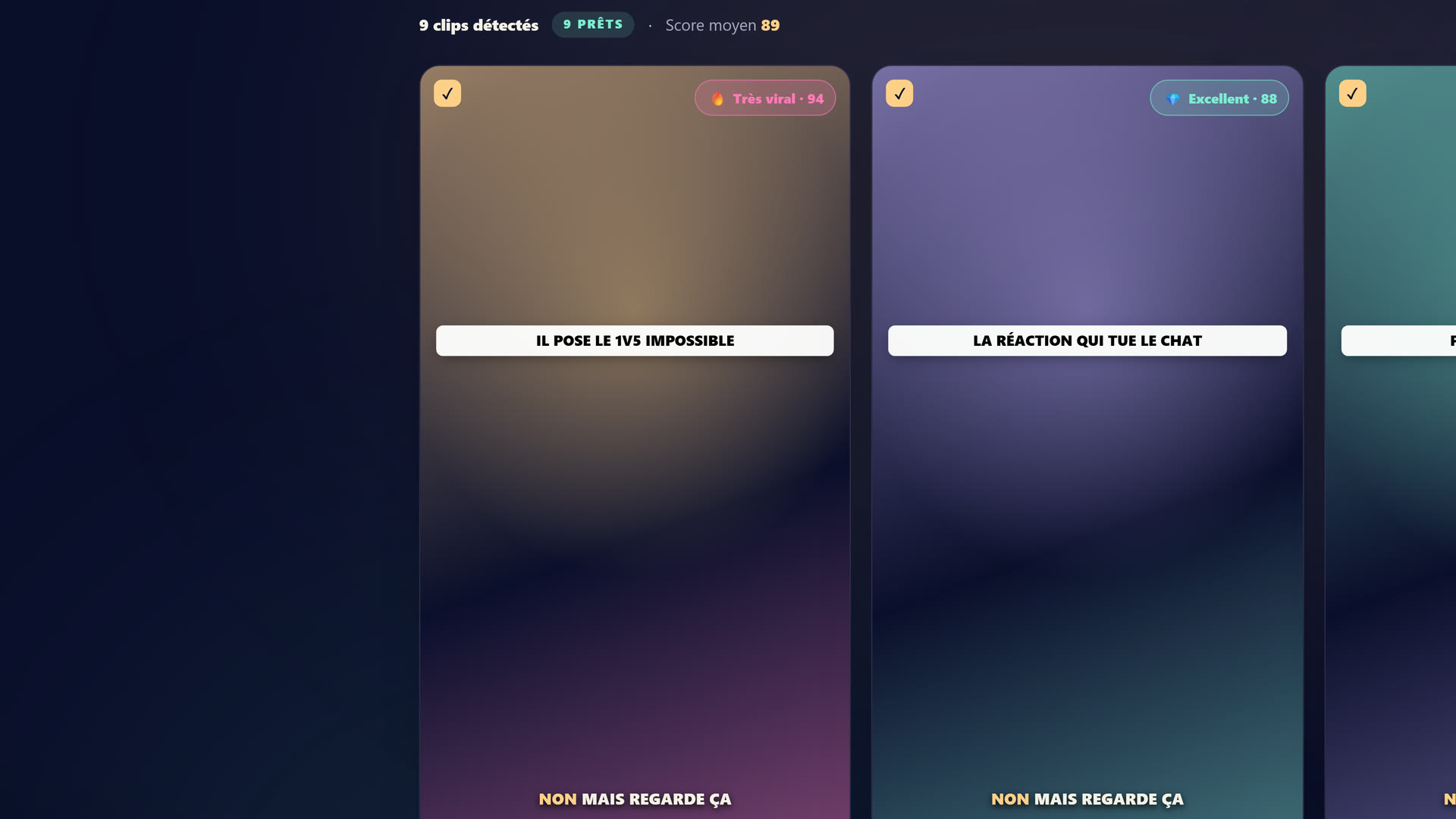 Le studio StreamClipping : tu connectes ta VOD Twitch, YouTube ou Kick, l'IA repère les moments forts et sort les clips en 9:16.
Browser source pour les alerts
N'installe pas StreamLabs ou Streamlabs Desktop. Reste sur OBS Studio + browser sources qui pointent vers ton compte StreamElements ou StreamLabs cloud.
Avantages :
- Plus léger en RAM
- Plus stable (pas de crashes)
- Plus customisable
- Mêmes features
Game capture > Display capture
Pour capturer ton jeu, utilise toujours Game Capture, pas Display Capture. Game Capture cible le process du jeu directement, beaucoup plus efficace en GPU. Display Capture re-encode tout ton écran, lourd.
Exception : jeux DirectX 9 anciens où Game Capture peut buggé. Là tu fallback sur Window Capture.
Le multi-monitor pas géré n'importe comment
Si tu as 2 écrans, OBS doit capturer uniquement l'écran de jeu. Pas l'écran avec OBS et Discord. Sinon tu fais une boucle de rendering qui pète tout.
Game Capture évite ce problème automatiquement, c'est une autre raison de l'utiliser.
Buffer size = bitrate
Settings → Output → Advanced → Bitrate buffer size = même valeur que ton bitrate. Si tu stream à 6000 Kbps, buffer = 6000. C'est le default mais beaucoup le changent par accident.
Section 6 : Le check-up santé du stream à faire chaque mois
Une fois par mois, fais ces 3 vérifs :
1. Stats OBS : Tools → Stats. Regarde "Skipped frames due to encoding lag" et "Dropped frames". Doit être 0%. Si > 1%, ton bitrate est trop élevé pour ta connexion ou ton encoder rame.
2. Twitch Inspector : inspector.twitch.tv. Tu lances un stream test, l'outil te dit si ton stream est healthy ou si tu drops. Indispensable au début.
3. Test sur autre device : ouvre ton stream sur ton téléphone (pas connecté à ton compte) en 1080p. Ça doit être fluide, sans pixellisation, avec son propre. Si ça bug, problème encoder/upload.
La config résumée pour 80% des streamers FR
Pour un PC moyenne config (Ryzen 5 / i5 + RTX 3060/4060 + fibre 8 Mbps upload) :
Settings → Output → Streaming :
  Encoder       : NVIDIA NVENC H.264 (New)
  Rate Control  : CBR
  Bitrate       : 6000 Kbps
  Keyframe      : 2
  Preset        : Quality
  Profile       : high
  Look-ahead    : enabled
  Psycho Visual : enabled

Settings → Output → Audio :
  Track 1       : 160 Kbps (Twitch) / 256 (autres)

Settings → Video :
  Base Resolution        : 1920x1080
  Output Resolution      : 1920x1080
  Downscale Filter       : Lanczos
  Common FPS Values      : 60

Settings → Audio :
  Sample Rate            : 48 kHz
  Channels               : Stereo
Tu paste ça, tu testes 1 stream en 720p / 30 fps d'abord, puis tu montes en 1080p60. Si tu drops, baisse de 500 Kbps. Si tout est stable, monte de 500 Kbps. Trouve ton sweet spot en 3-4 streams.
Conclusion : OBS bien configuré = 50% du boulot fait
Une config OBS optimale, c'est la fondation invisible de ton stream. Tes viewers ne le remarqueront jamais. Mais s'ils ont une mauvaise expérience (drops, audio cassé, qualité pixellisée), ils ne reviendront pas. Statistique brutale.
30 minutes investies aujourd'hui te sauvent 30 heures de frustration sur 6 mois.
Une fois ta config stable, le vrai levier de croissance c'est le contenu, et surtout le clipping multi-plateformes qui transforme tes streams en publicité organique gratuite. C'est ce qu'on automatise avec StreamClipping AI.
StreamClipping AI te laisse tester ça gratuitement, 15 minutes de vidéo par mois à vie, sans carte bancaire.
À lire aussi pour aller plus loin :
- De 0 à 1000 viewers Twitch en 6 mois la stratégie growth complète une fois que ton OBS tourne propre
- Comment transformer 1 stream Twitch en 30 clips viraux le levier qui change tout
- Twitch vs Kick vs YouTube Live où vraiment streamer en 2026
- 10 comptes TikTok à monter pour éviter le shadowban
Prêt à transformer tes lives en clips qui percent sans y passer tes nuits ? Teste StreamClipping gratuitement : 15 minutes de vidéo par mois à vie, sans carte bancaire.
Fait avec amour, par un streamer pour les amoureux du stream. Ragnarlebroc.