Il est 22 h 40. Tu viens de faire le clutch de la soirée, le chat explose, quelqu'un tape « CLIP ». Tu as deux options. Attendre demain, récupérer la VOD, sortir le clip et le poster dans l'après-midi, quand tout le monde est passé à autre chose. Ou le poster maintenant, pendant que ton chat en parle encore et que ton live continue.
La deuxième option s'appelle le live clipping. Voici comment ça marche, quoi en faire, et les pièges à éviter.
Le clip à chaud contre le clip du lendemain
Le clipping classique attend la fin du stream. Tu récupères la VOD, l'IA la passe en revue, les clips arrivent une fois que tout le monde est parti. C'est parfait pour le volume : une VOD de quatre heures donne une semaine de contenu.
Ce que ça ne permet pas, c'est la vitesse. Un clip posté pendant le live profite de deux choses qui n'existent plus le lendemain : un chat encore chaud, qui partage et commente sur le moment, et un live encore ouvert, vers lequel le clip peut renvoyer. Le lendemain, le clip est bon, mais il raconte un moment que tout le monde a déjà vu.
Le live clipping, c'est sortir le clip dans les minutes qui suivent le moment, pendant que le stream tourne.
Comment ça marche
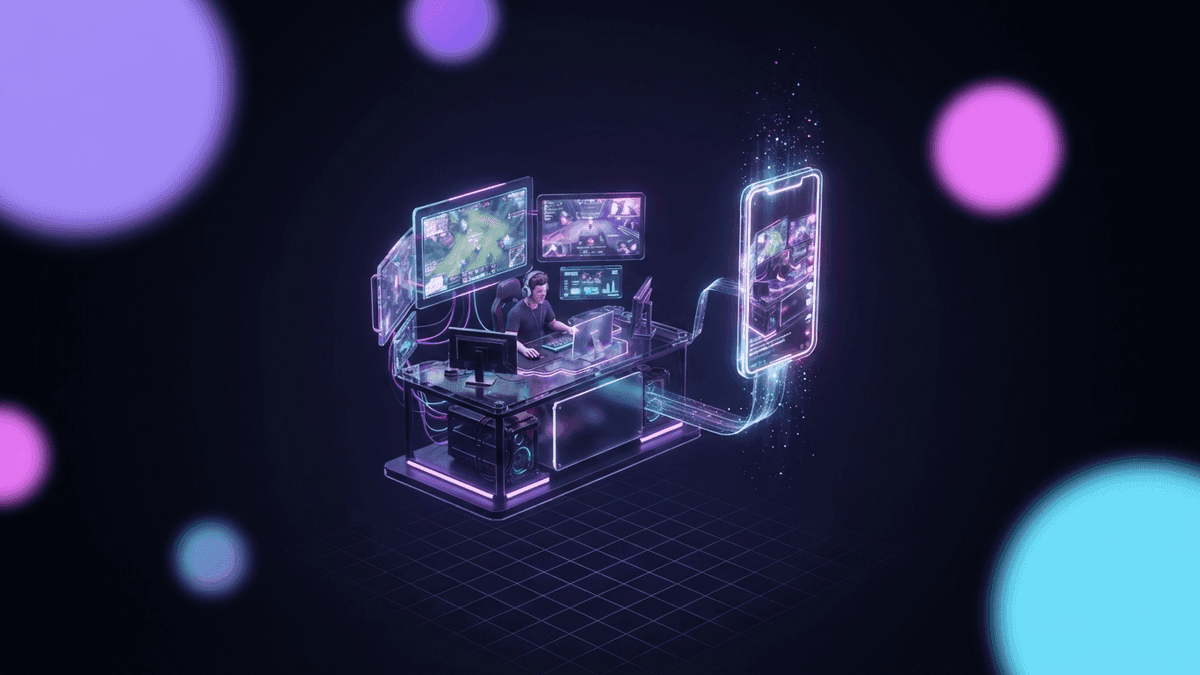
Chez StreamClipping AI, le logiciel de clipping IA pour streamers, tu colles le lien public de ton live Twitch, YouTube ou Kick. À partir de là, tout se passe sur nos serveurs :
- La capture suit le live en direct. Rien à installer, rien à lancer sur ton PC. Pas de plugin OBS, pas d'encodage en plus, zéro impact sur tes FPS.
- L'IA lit deux signaux au fil de l'eau. Le son (un cri, un rire) et les accélérations du chat. Un moment qui sort nettement du rythme habituel du stream déclenche un clip, et la transcription est faite ensuite sur ce passage, pour les sous-titres et l'accroche.
- Le clip est monté dans la foulée. Recadrage vertical 9:16, facecam et gameplay séparés, sous-titres animés, accroche en tête. Il arrive dans ton studio quelques minutes après le moment.
- Tu publies, ou AutoPilot le fait. Un clic pour valider, ou une programmation automatique sur TikTok, Shorts et Reels.
La page live clipping détaille la capture plan par plan. En résumé : incluse dès Creator, avec une borne par session (2 h, 4 h en Pro, 8 h en Elite) et un cumul mensuel de capture (3 h, 6 h, 16 h), séparé de tes minutes de vidéo. Chaque clip de live dure autour d'une minute et ne décompte qu'environ une minute de ton quota de minutes, jamais la durée du stream.
Tu veux ces clips dans ta vie ?
StreamClipping transforme tes lives en clips verticaux prêts à poster, sous-titres animés inclus. Plan gratuit à vie, 15 min de vidéo par mois, sans carte bancaire.
Le setup en trois minutes
Avant le live, pas pendant. Trois choses à faire une fois :
- Connecter tes comptes de publication. TikTok, YouTube, Instagram. C'est ce qui permet à AutoPilot de poster sans toi.
- Régler AutoPilot. Soit tout part automatiquement, soit chaque clip attend ta validation. Pour un premier live, choisis la validation : tu verras ce que l'IA sort, et tu affineras.
- Préparer le lien. L'URL de ta chaîne suffit. Au moment de lancer le stream, tu colles le lien du live, et c'est parti.
Une fois que c'est réglé, le live suivant demande un seul geste : coller le lien.
Quoi poster pendant le live
L'erreur classique, c'est de tout poster. Dix clips en deux heures, c'est du spam pour tes propres comptes, et les plateformes le voient. Pendant un live, vise deux ou trois clips, choisis pour des raisons différentes.
Le moment fort. Le clutch, le fou-rire, la punchline. Celui que le chat a réclamé. Il part tel quel, c'est le clip qui fait des vues.
Le teaser. Un clip qui dit, sans le dire, que tu es en live maintenant. Une réaction, une phrase, quinze secondes. Sa description mentionne que le live continue. C'est le clip qui ramène des viewers.
Le clip de commu. Un délire du chat, une réaction à un message, un moment qui n'a de sens que pour ceux qui étaient là. Il fait moins de vues et c'est normal : il est là pour ceux qui te suivent déjà.
Le reste, tout ce que l'IA a sorti et que tu n'as pas posté, la VOD le récupérera le lendemain.
Quand poster
Espace. Un clip toutes les heures, pas trois en dix minutes. Un humain ne poste pas cinq vidéos en cinq minutes, et un compte qui le fait ressemble à une ferme à clips. Le guide du clipping détaille le protocole pour ne pas se faire brider.
Le meilleur moment pour le teaser, c'est le premier tiers du live, quand il reste assez de temps pour que les gens viennent. Le moment fort part quand il arrive, c'est tout l'intérêt. Le clip de commu peut attendre la fin.
Les pièges
- Spoiler la fin. Si ton live a une fin qui compte (un boss, un résultat, une révélation), ne la clippe pas à chaud. Le clip du lendemain fera plus de vues sans priver ceux qui regardent en replay.
- Clipper ce qui exige le contexte. « Il l'a fait » n'est drôle que si on sait ce qu'il devait faire. L'IA propose, tu tries : un clip qui ne se comprend pas seul reste dans le studio.
- Regarder ton studio au lieu de ton chat. Le live clipping doit rester invisible pendant le stream. Valide entre deux parties, pas au milieu d'une action. Ou laisse AutoPilot faire et vérifie après.
- Oublier la VOD. Le live sort les moments à chaud, un par un. La VOD, le lendemain, sort le volume avec le recul de toute la session. Les deux ensemble, c'est deux ou trois clips le soir même et une semaine de contenu derrière.
Live clipping sur Twitch, YouTube et Kick
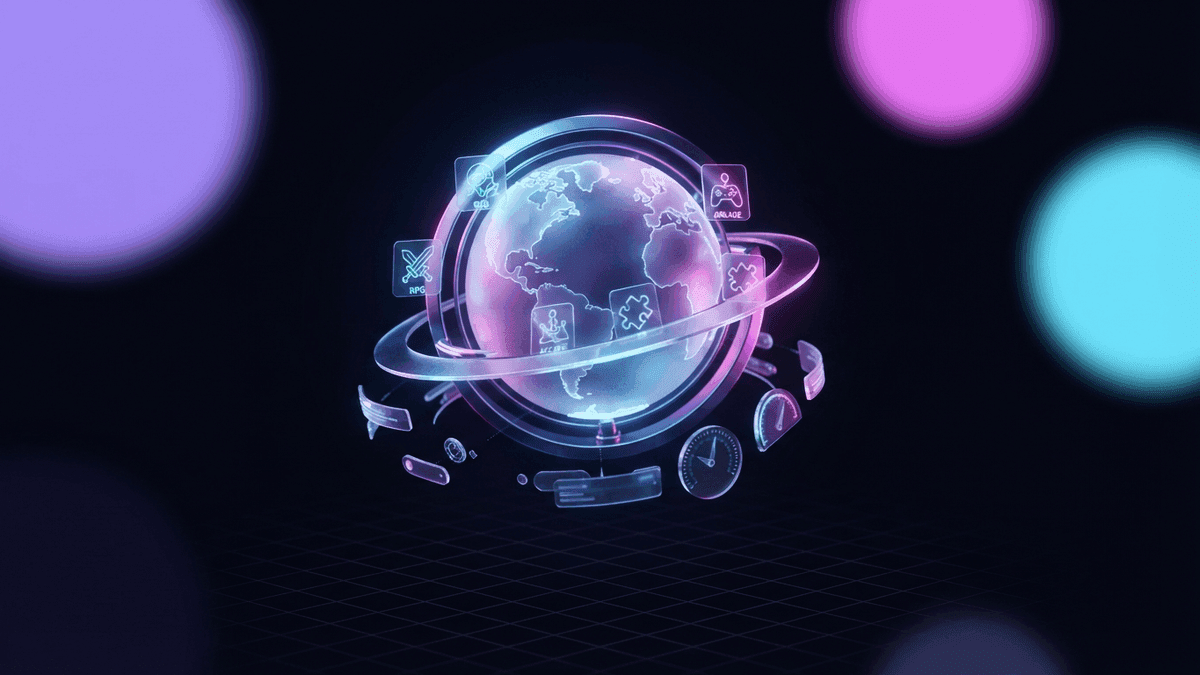
Les trois plateformes se clippent en direct à partir du lien public du live. Sur Twitch, c'est le cas d'usage le plus courant : facecam plus gameplay, un chat vivant, des moments courts. Sur Kick, le principe est le même, avec des lives souvent plus longs. Sur YouTube, le live clipping marche aussi bien pour un stream gaming que pour un live IRL ou un podcast en direct.
Dans les trois cas, le résultat est le même : un clip vertical sous-titré, prêt à partir, pendant que ton live continue. Colle le lien de ton prochain live et regarde ce qui sort.
À lire aussi :
- Repérer les moments forts de ton live pour les clipper
- Clipping IA : comment l'IA repère un moment viral dans un live
- Le meilleur moment pour poster tes clips
Fait avec amour, par un streamer pour les amoureux du stream. Ragnarlebroc.